
Signify 2.2 is here, and we’ve packed this release with exciting updates.
With Signify 2.2, managing documents gets even easier. Bulk import with AI helps you bring your document archive into one organized digital space, while reminder emails keep you informed about upcoming contract expirations. And with updated team settings, you can assign different roles to the same user across teams, giving everyone the right level of access. And that’s only part of what’s waiting for you in this release. Let’s go through it all, one by one.
Workflow Redesign: Sending Documents Got Faster And Easier
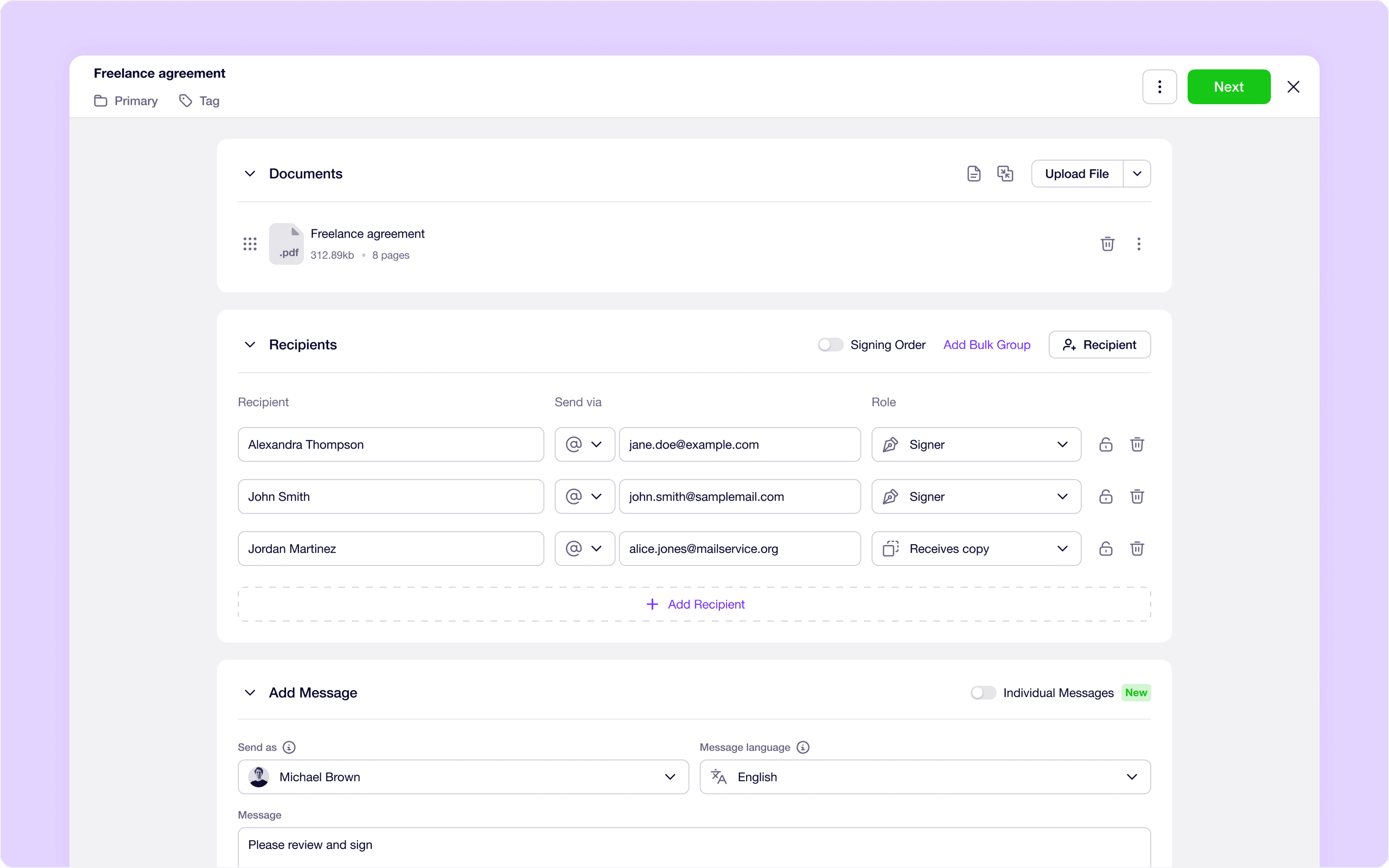
With the Workflow Redesign in Signify 2.2, sending a document is quicker and easier. We’ve shortened the process, brought all the settings you need into one place, and added more flexibility for each recipient.
Fewer steps to send: Sending a document now takes just two steps. In the first, you upload your document, add recipients, write your message, and set up reminders. In the second, you place the fields on the document and hit send.
Everything you need in one place: The document name, folder, and tags are always at hand in the top bar.
A personal message for every recipient: Turn on “Individual Messages” to send each recipient their own message, in the language that suits them best. For example, a new hire can get your standard welcome note, while the company director gets a personal message saying everything has been cleared with HR and only their final approval is needed.
Bulk Import With AI: Bring Your Whole Archive On Board
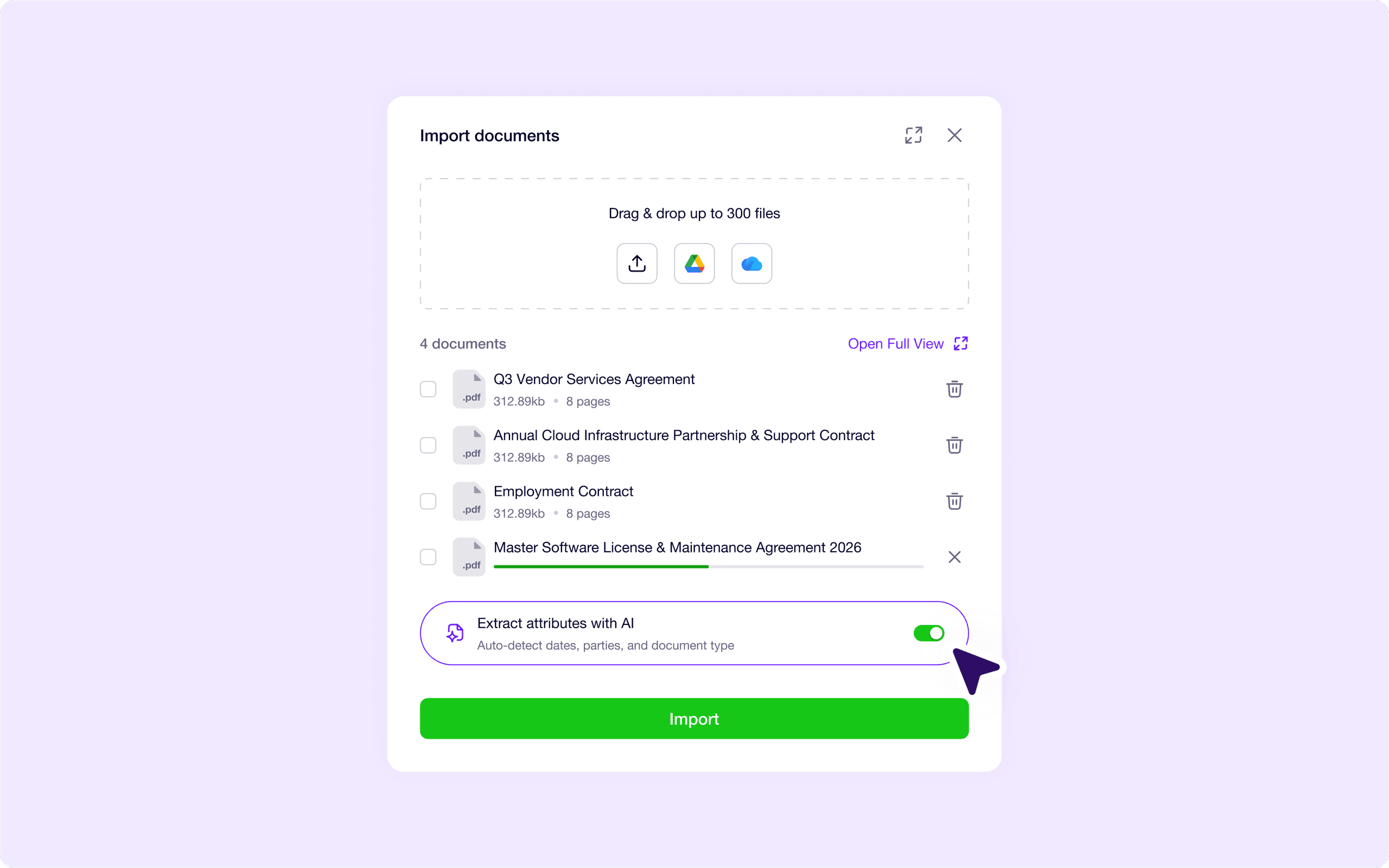
From now on, you can turn Signify into one smart archive for all of your company’s documents.
Until now, getting documents into Signify meant uploading them one by one. With Bulk Import with AI, you can upload hundreds of files at once, and AI will help you pick out the important information inside them.
Upload documents in bulk: You can upload up to 300 files at once in the import window. Before importing, you can review and organize your files by renaming them, deleting unwanted files, merging several files into one document, or changing their order. You can also assign a folder and tags to all documents at once.
Let AI extract key document details: During import, you can enable AI-powered attribute filling. AI identifies the document type and extracts key information, including the parties to the contract, effective and expiration dates, and contract amount. It can also extract custom attributes specific to your company or industry. Once the process is complete, you’ll receive a notification and can go straight to your imported documents with a single click to review the extracted information.
Find documents more easily: Every bulk import, document sending process, and AI extraction task gets a unique reference number, such as BI-1086. You can find this number in the document details and history, making it easier to locate documents that were imported or processed together, even later on.
AI Credits: More Flexibility When Using AI Features
AI features are taking more and more work off your plate, so we want them to be easy to use and easy to manage. That’s why we’re introducing AI Credits: our AI features now run on credits and are available in all paid plans.
Monthly credits included with your plan
Every plan comes with free monthly credits, which refresh on the first day of each month.
- Business: 50 credits per month
- Business Pro: 200 credits per month
- Enterprise: 1,000 credits per month
Need more credits? Top up anytime
If you run out of your included credits, you can purchase an additional credit pack directly from the Billing page. Choose from packs of 100, 500, 1,000, or 10,000 credits, depending on your needs.
Learn more about AI Credits in our AI credits guide.
Updated Team Settings: The Right Access For Every Role
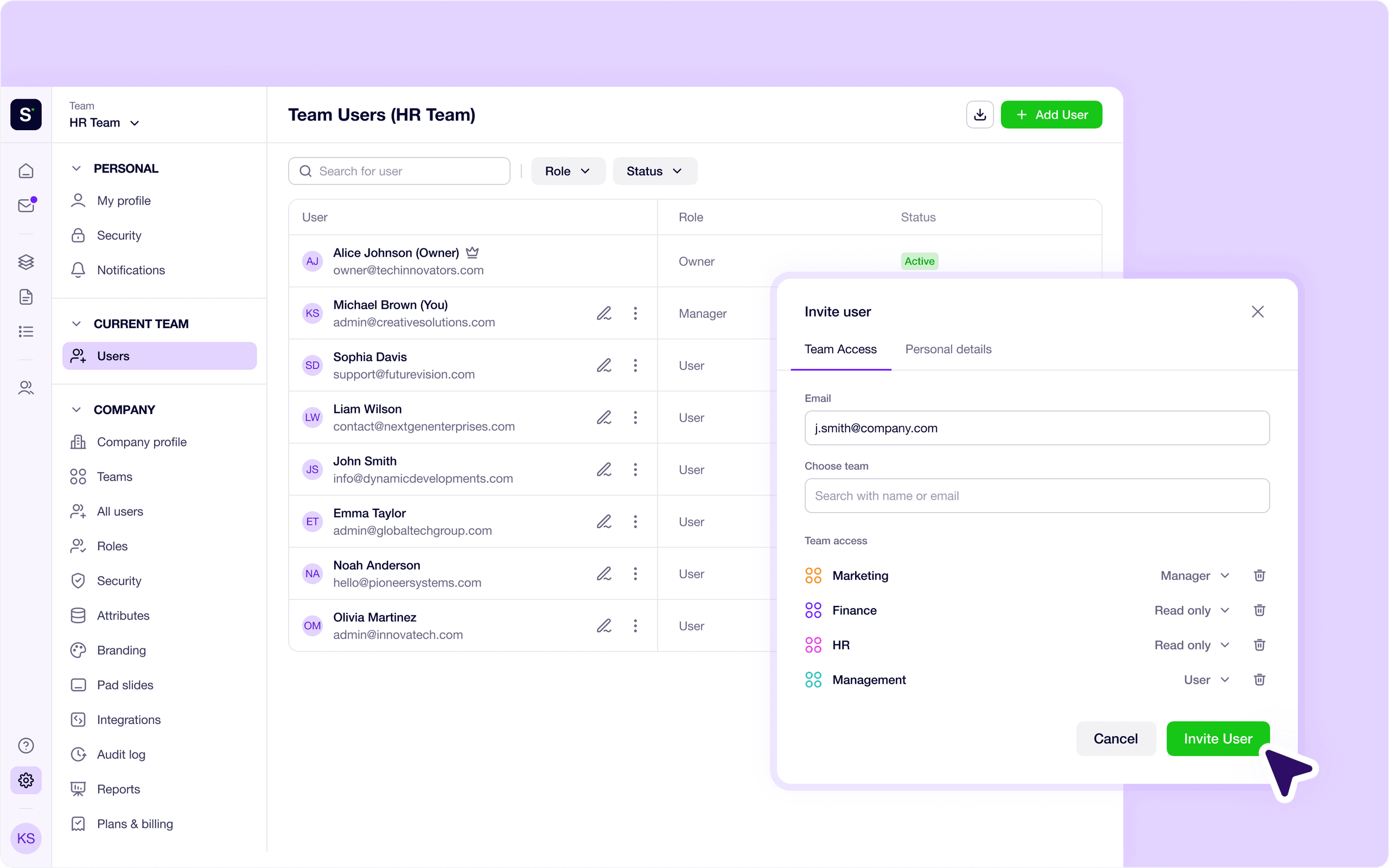
With updated team settings, we’ve made team and role management more flexible, so everyone has exactly the level of access they need to do their job.
One user, different roles: You can now assign different roles to the same user in different teams. For example, someone can have Manager permissions in the Sales team while only being able to view documents in the Finance team.
Manage each team independently: A new Team section has been added to Settings. Team Managers can invite new members and manage their own teams without needing access to the entire company’s user list.
Two roles to know about
- Viewer: Users with this role can view documents but can’t make changes to them. It’s a good fit for anyone who needs access to information but doesn’t need to edit documents.
- Team Manager: This role gives team managers more control over their teams. They can invite new members to their own team and use the team transfer feature to move members between teams.
Updates In Attributes
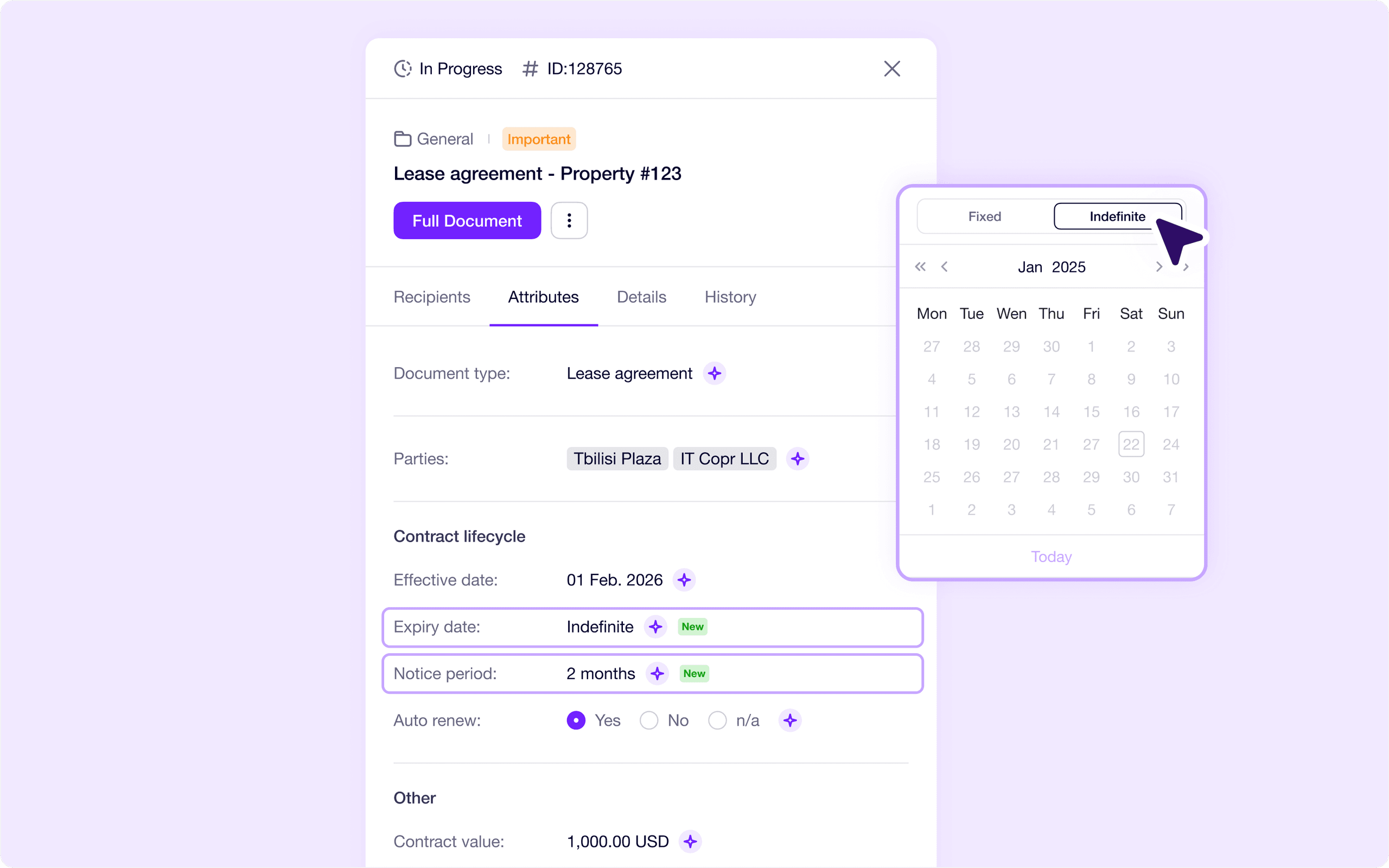
Every document has its own specifics. On an invoice, the amount and payment date matter most. In an employment contract, it’s the job title. In a lease agreement, it might be the notice period and auto-renewal terms. So we’ve expanded the list of default attributes to give every document the fields it actually needs.
New attribute: Notice Period: We’ve added a Notice Period attribute that shows how far in advance the other party must be notified before a contract is terminated. You can specify the period in days, weeks, months, quarters, or years.
Contracts with no end date: In the “Expiry date” attribute, you can now mark a contract as indefinite, so there’s no need to enter a specific date.
Never Miss a Contract Deadline
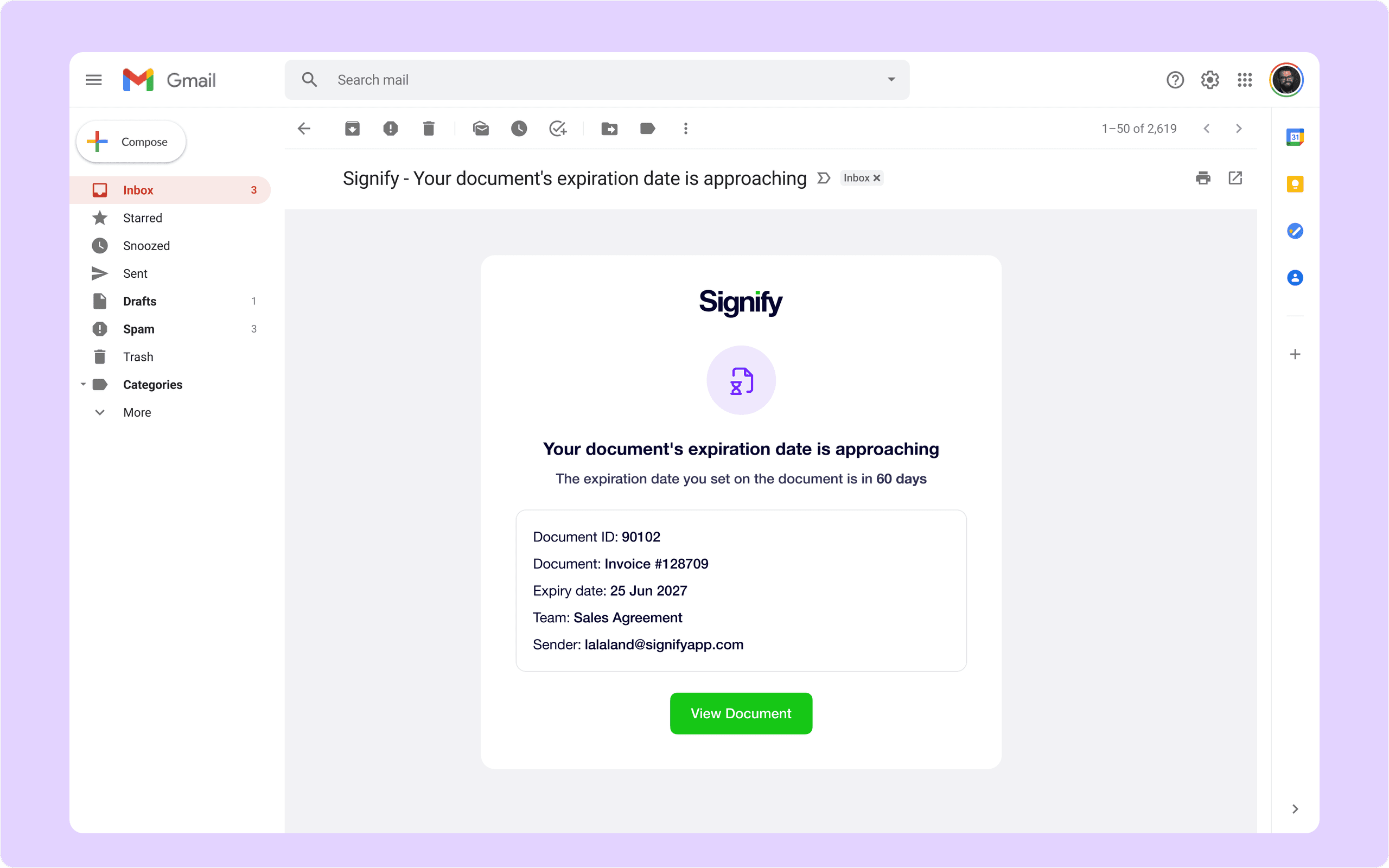
When you’re managing dozens of contracts at once, an expiry date can easily slip through the cracks. With Reminder Emails, we keep an eye on the dates for you and remind you in time, giving you room to prepare for renewal.
How do Reminder Emails work? If a document has its “Expiry date” attribute filled in, Signify will email you three reminders:
- 2 months before the expiry date
- 1 week before the expiry date
- The day after it expires
Reminder Emails are sent only for completed and imported documents.
Who gets them? The document’s sender, plus every user who has permission to manage all of the team’s documents.
You’re in control: If you’d rather not receive them, you can turn reminder emails off anytime in your personal notification settings.
What else is new in Signify 2.2?
Custom attributes on Business Pro: Business Pro users can now create their own attributes. Add the details that matter to your business on top of the default fields, and organize documents exactly the way your team needs.
Longer documents on Signify Pad: You can now send documents longer than 15 pages to Signify Pad. That means multi-page contracts, like hotel or clinic paperwork, can be signed on the spot, in one go. To use this, you’ll need to update the Signify Pad app. If you need a hand with the update, just drop us a line, and we’ll be happy to help.
New QES provider, InfoCert: InfoCert, a widely used provider across Europe, has joined our list of Qualified Electronic Signature providers. Signers can use it just as easily as the providers already integrated in Signify. And if a signer doesn’t have a certificate, they can still buy a One-Shot Signature.
Single Sign-On (SSO) settings: On the “Security” page in your company settings, you can now choose how your team signs in to Signify: email and password, Google, or Microsoft. For example, if you allow Microsoft sign-in only, a former employee loses access to Signify as soon as their Microsoft account is disabled. The account owner can always sign in with email and password, so you’ll never get locked out.


Book a 1-on-1 demo
Our team will get in touch with you shortly


